Ultimate way to beautify Mac terminal (oh-my-zsh) and plugin recommendations
A historical macOS setup for improving Terminal with a profile, Oh My Zsh, themes, and practical plugins. Verify installation commands before use.
Read this post in 中文.
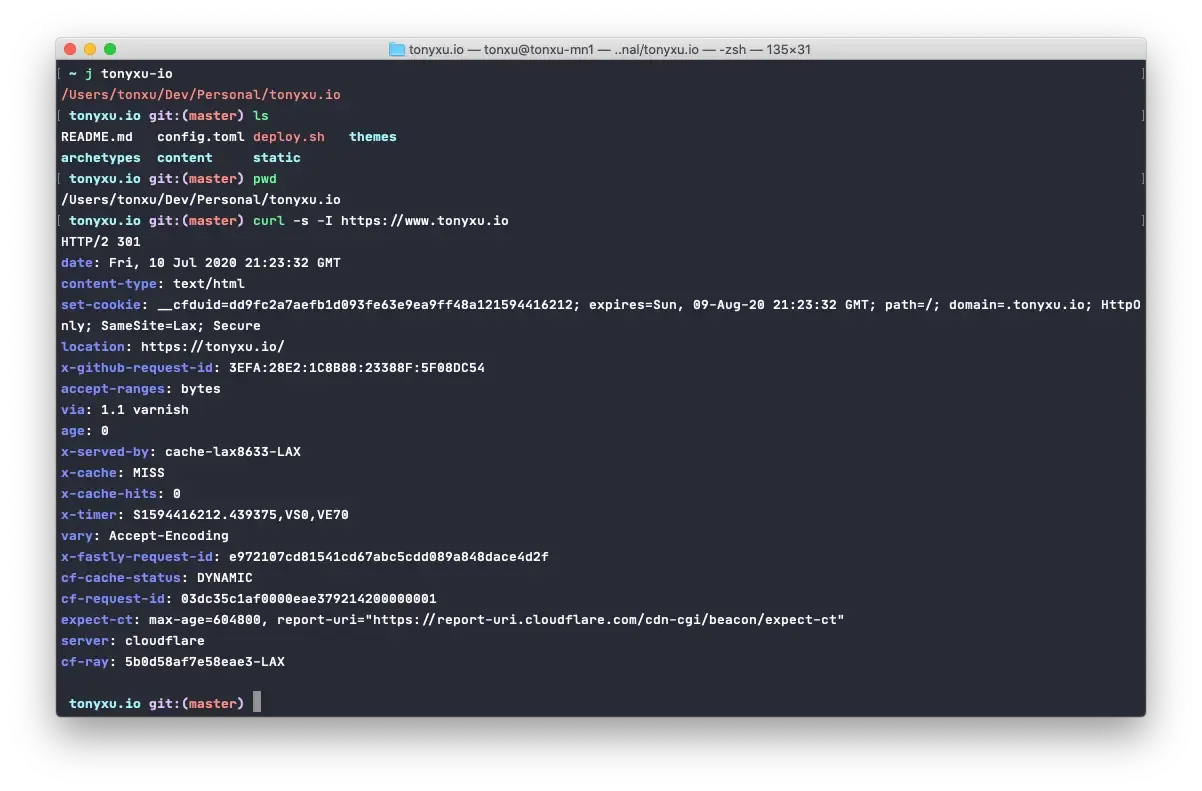
Historical note: this guide reflects a 2018 macOS setup. The commands, default paths, and plugin URLs may have changed; verify them against the current project documentation.
If you use a Mac for development, Terminal is probably one of your most frequently used apps. This guide shows how I improved it with a custom profile, Oh My Zsh, a theme, and a small set of plugins.
We will be doing these for our Terminal
- Install Terminal Profile: Customize Terminal Color
- Install
oh-my-zsh: Use the powerfulzshshell in Terminal - Install
oh-my-zshthemes: Beautifyoh-my-zsh - Install useful
oh-my-zshplugins: Add shortcuts and quality-of-life improvements
Preparation
Recommend to install homebrew first:
/usr/bin/ruby -e "$(curl -fsSL https://raw.githubusercontent.com/Homebrew/install/master/install)"Install zsh if you are on macOS version prior to Catalina:
# Install zsh
brew install zsh
# Set zsh as your default shell
chsh -s /usr/local/bin/zsh
Install Terminal Profile
- Go to osx-terminal-theme and download your favorite theme in
schemefolder - Double click the theme file to install and set as default
Feel free to use my Terminal Profile if you would like to try: https://gist.github.com/tonyxu-io/6b845cb1a53622eb4f1ce4063365e427
Install oh-my-zsh
Oh My Zsh is a delightful, open source, community-driven framework for managing your Zsh configuration. It comes bundled with thousands of helpful functions, helpers, plugins, themes, and a few things that make you shout…
Install oh-my-zsh:
sh -c "$(curl -fsSL https://raw.github.com/robbyrussell/oh-my-zsh/master/tools/install.sh)"Install oh-my-zsh theme
Built-in themes
oh-my-zsh provides some built-in themes which you can immediately use:
- Find your favorite theme in built-in themes list: https://github.com/robbyrussell/oh-my-zsh/wiki/Themes
- Set
ZSH_THEMEto your favorite theme name in~/.zshrc - Activate setting by
source ~/.zshrc
Third-party themes
There are more third-party themes developed for oh-my-zsh; find and install them here:
https://github.com/robbyrussell/oh-my-zsh/wiki/External-themes
Install oh-my-zsh must-have plugins
oh-my-zsh has many powerful plugins, below are some must-have plugins that will boost your productivity.
Sample config:
# ~/.zshrc:
plugins=(
  git
  extract
  autojump
  zsh-autosuggestions
  zsh-syntax-highlighting
)
git
Built-in,use abbreviations for git commands, e.g. gaa -> git add --all, use alias | grep git to get all abbreviations commands
Activate: Add git to ~/.zshrc plugins list.
extract
Built-in, no need to use complicated tar to extract zip files
Activate: Add extract to the ~/.zshrc plugins list.
Usage: extract file_name
autojump
Use j to quickly jump to a folder, e.g. j Downloads -> cd ~/Downloads
Install: brew install autojump
Activate: Add autojump to ~/.zshrc plugins list.
zsh-syntax-highlighting
Commands syntax highlight plugin
Install: git clone https://github.com/zsh-users/zsh-syntax-highlighting ${ZSH_CUSTOM:-~/.oh-my-zsh/custom}/plugins/zsh-syntax-highlighting
Activate: Add zsh-syntax-highlighting to ~/.zshrc plugins list.
zsh-autosuggestions
Auto complete commands by typing →
Install: git clone https://github.com/zsh-users/zsh-autosuggestions ${ZSH_CUSTOM:-~/.oh-my-zsh/custom}/plugins/zsh-autosuggestions
Activate: Add zsh-autosuggestions to the ~/.zshrc plugins list.
My own ~/.zshrc config
# Path to your oh-my-zsh installation.
export ZSH=/Users/tonxu/.oh-my-zsh

# theme
ZSH_THEME="robbyrussell"

# plugins
plugins=(
  git
  extract
  autojump
  zsh-autosuggestions
  zsh-syntax-highlighting
)

source $ZSH/oh-my-zsh.sh

# set language
export LANG=en_US.UTF-8

# default editor
export EDITOR='vi'

# ssh key path
export SSH_KEY_PATH="~/.ssh/rsa_id"
Comments are hosted on GitHub for reliable, searchable threads.
Open comments